So this is an update to my post on Fixing Wamp not so friendly extension.
I was trying to configure WAMP in WIndows7 so I can play with postgres 8.4. So I put on the extension php_pgsql and php_pdo_pgsql and it doest work.
To fix this you must find the libpq.dll file in C:\wamp\bin\php\php5.X.X whatever your version is) and put it on C:\Windows\System32 AND to c:/wamp/bin/apache/apachex.x/bin (this is the difference with my post) .
Please note that just in case you must install a WAMP of the same bitage that your postgres version. In my case Wamp 64 bits didnt work on my Postgres of 32 bits, so i reinstalled and used the Wamp of 32bit.
Hope it help anyone!


Easy Way to install PEAR and PHPUnit in WAMP 2.2 with Windows 7
Quite a big title but i found an easy way to install PEAR and PHPUnit in WAMP. I am really new about doing this but seems that it install them correctly. So here we go.


Preamble
Well make sure you have installed WAMP server on your PC. Its quite straightforward to install it so we are not making any special instruction to do it. Just download the installer, double click and select the browser you will want WAMP to use as defaultInstalling PEAR
- First download the PEAR .phar file and put it in c/wamp/bin/php/php5.3.8.
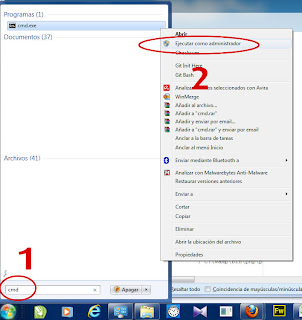
- Now search for the windows console and open it up as an administrator. Take a look at the picture to give you an idea:

- Now in CMD write this: cd C:\wamp\bin\php\php5.3.8
- After that write this: php gp-pear.phar
- It will ask "Are you installing a system-wide PEAR or a local copy? write system and shot enter
- It will output crazy stuff like temporary directory and so, wait until it ask 1-12, 'all' or Enter to Continue, just press enter
- Then it will ask If the specified directory is also not in the include_path.... write Y
- Then it will end. Now as strange as it sound, install it again writing php gp-pear.phar and do the same stuff all over again. Why you may ask, well there's an error that comes the first time you install PEAR, so doing it again solve that error. So do it again :)
- Now after it finished installing open this file with notepad C:\wamp\bin\php\php5.3.8\php.ini and search for the line ;include_path = ".;c:\php\includes", after this line write this include_path = ".;C:\wamp\bin\php\php5.3.8\pear" It will look like this:

- Nice!, now do the same for this other php.ini file: C:\wamp\bin\apache\Apache2.2.21\bin\php.ini, open it up search for ;include_path = ".;c:\php\includes" and after that line write include_path = ".;C:\wamp\bin\php\php5.3.8\pear"
- Excellent, now reset your WAMP making left-click on his icon an pressing the button Restart all Services:
- Congrats yourself, you just installed PEAR on Windows. Now lets test it. On your CMD, make sure youre on c:\wamp\bin\php\php5.3.8 and write pear. You should see appear a list of commands from pear.
- Now to call pear from the command line from anywhere, not only the pear directory we must install it on the path variable of windows. Go to your control panel and in the search toolbox write variable.

- There will be an option called edit the system variables. Use the one with the Shield. Click that option and it should appear something like this:

- Select the Path Variable and click on Edit, and put this (yes including the semicolon) ;C:\wamp\bin\php\php5.3.8

- Nice, one more thing that may help. In C:\wamp\bin\php\php5.3.8 theres a file called PEAR_ENV.reg. Execute it. It will put some new variables on your PATH. I guess there are very important. But please comment if you know something about it.

Installing PHPUnit
- This is easier that PEAR. First open your CMD and write pear upgrade pear
- Once pear is updated, write one at a time and press enter for each line:
- pear channel-discover components.ez.no
- pear channel-discover pear.phpunit.de
- pear channel-discover pear.symfony-project.com
- After that write this: pear install --alldeps phpunit/PHPUnit
Excellent PHPUnit and PEAR are installed on your WAMP. If you want to thank me please first thanks this dudes, they write this down first. I only put some more images here :
Drupal Views & image Title & Tooltips
Well, its time for some new and nice Drupal Tutorial. Today we are looking for the abilitiy to create easy Tooltips in Drupal 6 using Views. ( Will work on Drupal 7 with almost no change ). And we are putting those nice and crispy tooltips with any content that we want. It will appear mouseovering on a Image.
Of course feel free to install any module you need to improve the view (like imagecache module).
2) Now Add the field that is going to contain the tooltip info and exclude it from display.
3) Next, add the field were we want the tooltip to appear, and do the following ministeps:

Do you notice the words between brackets [ ]?. Those are replacement patterns words that essentially are all the fields that you put before the actual field youre editing. You can see a list of all the active replacement patters after the "Rewrite the output of this field" Textbox. It looks like this:
4) Save your view and go to the folliowing address: yoursite.com/admin/settings/tipsy. Now this is the Tipsy configuration page. In tipsy you can do two things. Configure the tooltips on all your Drupal forms (have fun) and create Custom Selectors to indicate where we want the tips to show up.
Create a Custom Selector like this:
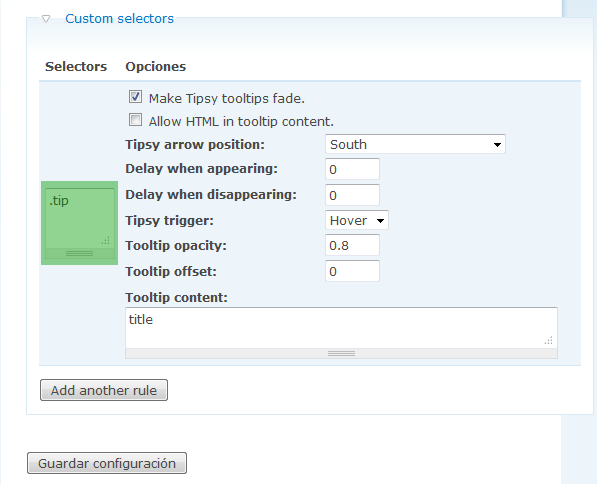
In the Green Square we are going to put just ONE selector. Remember that
we wrap a field inside a div and put a .tip class on the div?. Here we
tell tipsy what page element should be Tipsied. Yes tipsied... I cant
find any other word to describe that.
Save the configuration and enjoy!. Dont forget to clean caches just in case. Comments?
 |
| Online Example at: www.reich.com.pe/pedidos |
The Recipe
For this Example we are going to need this 3 modules installed on your drupal site :Of course feel free to install any module you need to improve the view (like imagecache module).
How to Do It
1) Ok, first create a view and put all the fields and filters and well, anything you want on your views excepting of course the image we want to be tooltiped. |
| In this case we are adding only the Title field. Lets keep it simple. |
2) Now Add the field that is going to contain the tooltip info and exclude it from display.
 |
| In this case, the node body is our chosen one. Dont forget to exclude it from display |
3) Next, add the field were we want the tooltip to appear, and do the following ministeps:
- check the "Rewrite the output of this field". A textbox should appear
- Wrap your field (in this case [field_image_cache_fid]) in a div.
- Put a class called tip (or whatever word you choose) on the div.
- Put a title equal to the field on step 2.
Do you notice the words between brackets [ ]?. Those are replacement patterns words that essentially are all the fields that you put before the actual field youre editing. You can see a list of all the active replacement patters after the "Rewrite the output of this field" Textbox. It looks like this:
 |
| If you dont a field there, then 90% of the cases are that you added the field AFTER the field yoyre rewriting. |
Create a Custom Selector like this:
 | ||
Save the configuration and enjoy!. Dont forget to clean caches just in case. Comments?
Relative Superfish is a Mad Mad Girl
When trying to use Superfish or other css-based dynamic menu, Internet Explorer will complot against you, specially with some complex layout.
Lets take an example of what im saying. Suppose we want to do come to this:
 This is a typical web page, we have a Menu with Superfish, an Slideshow underneat it, and also a floating Logo. So what is the best way to put all of this?
1) Lets make the Dom:
 Thats right, put the container divs in that order and together at the same DOM level. Those ID comes from Drupal, but you can name them as you want.
2) Position:
This is almost easy, just put them as the image suggest:
 The important part here is the static position on the Superfish Menu. Never put a position:relative to the superfish menu container. It will just mess it up the children menus. Why it does that? Well for what I know, when a relative item (the submenu) is inside another relative item (the container), that item will only appear inside the view area of the container. Of course only on IE. (6 to 8 at least).
Lets take an example of what im saying. Suppose we want to do come to this:
 This is a typical web page, we have a Menu with Superfish, an Slideshow underneat it, and also a floating Logo. So what is the best way to put all of this?
1) Lets make the Dom:
 Thats right, put the container divs in that order and together at the same DOM level. Those ID comes from Drupal, but you can name them as you want.
2) Position:
This is almost easy, just put them as the image suggest:
 The important part here is the static position on the Superfish Menu. Never put a position:relative to the superfish menu container. It will just mess it up the children menus. Why it does that? Well for what I know, when a relative item (the submenu) is inside another relative item (the container), that item will only appear inside the view area of the container. Of course only on IE. (6 to 8 at least).
The Dreaded INVALID_STATE_ERR: DOM Exception 11
Last month I had a strange problem in Chrome with Jquery, the chrome console launched me an INVALID_STATE_ERR:DOM 11 error. It happen when i tried to insert a string of HTML directly using $.html(). Other browsers didnt thrown any error,even IE where ok with that kind of indecent proposal i tried to reach.
So what was the problem with Mr Chrome?
The Exception 11 means teorically means that some objects doesnt exist, in practice it mean that you're creating DOM objects ( I means html tags) using jquery append(), html() or prepend() with semantics errors, like not closing the tags or something like that. So if you write bad html like $.html('<ul><li>HelloWorld</li></ul>'); , ( we did'nt close the li tag) there will be mayhem in Chrome.
And the solution?
The Exception 11 means teorically means that some objects doesnt exist, in practice it mean that you're creating DOM objects ( I means html tags) using jquery append(), html() or prepend() with semantics errors, like not closing the tags or something like that. So if you write bad html like $.html('<ul><li>HelloWorld</li></ul>'); , ( we did'nt close the li tag) there will be mayhem in Chrome.
And the solution?
Drupal: From localhost to your domainsite in five steps
The designer in you, has finished to create the plus ultra of web pages, the only problem is that your web pages is in localhost, or worse yet, it is in a subdirectory in another domain. No problem, with this five step guide step you are going to have our web page ready to be truly Online
Step 1
Backup your database and webpage and put it in your new domain. This mean you have to enter your cpanel ( or other web manager , if you have plesk, may Odin be with you) and go to PhpMyAdmin ( you can install it if you dont have one, its free!) and export your database.
Now import it to your new domain. There may be a problem while importing the backup to your new site, If your database backup file is more than 5 mb, then you probably need BigDump. Its an Ajax uploader of databases. So when exporting your sql, mak sure to uncheck the Extended Insert option, it juss mess up BigDump.
In BigDump, make sure to use UTF-8 (or the schema youre using) in his config, this will make you very happy latter.
 Exporting your database so bigdump can use it
Step2: Domain URL
So far so good, you need to modify the sites/default/settings.php. Change the new database access, and the base_url variable (read the instructions there, nothing fancy really). Make sure that you have the right permission of modifyng that file. Usually it will not come with write permission (or chmod 555) . Make it chmod 777 (change is permission to write) and start modifyng. Then change it back to 555 for security sake.
Step3: htaccess
Did you change the permission for settings.php back to 555? Good, then there's a hidden file called .htaccess (notice the dot at the start) that you may need to modifyng. Search for this string # RewriteBase / and remove that # , so it is umcommented. If for some reason you are still at an subdomain you may need to chage it to # RewriteBase /subdomainname
Step 4: Refresh Cache
Now you need to go to http://www.yournewdomainname.com/oldsubdirectory/admin_menu/flush-cache?destination=admin%2Fsettings%2Fsite-information. Notice the red part is your old subdomain. Maybe you will need to remove it, remember that is the name of your old subdirectory (if you used one).
Ste 5: Run Cron
Now go to http://www..yournewdomainname.com/oldsubdirectory/admin/reports/status/run-cron?destination=admin%2Fsettings%2Fsite-information and enter. You are going to run cron. Again maybe you are not going to need that oldsubdirectory part but, just in case it is there.
Then enjoy, Happy New Year from Jeeba!
So far so good, you need to modify the sites/default/settings.php. Change the new database access, and the base_url variable (read the instructions there, nothing fancy really). Make sure that you have the right permission of modifyng that file. Usually it will not come with write permission (or chmod 555) . Make it chmod 777 (change is permission to write) and start modifyng. Then change it back to 555 for security sake.
Step3: htaccess
Did you change the permission for settings.php back to 555? Good, then there's a hidden file called .htaccess (notice the dot at the start) that you may need to modifyng. Search for this string # RewriteBase / and remove that # , so it is umcommented. If for some reason you are still at an subdomain you may need to chage it to # RewriteBase /subdomainname
Step 4: Refresh Cache
Now you need to go to http://www.yournewdomainname.com/oldsubdirectory/admin_menu/flush-cache?destination=admin%2Fsettings%2Fsite-information. Notice the red part is your old subdomain. Maybe you will need to remove it, remember that is the name of your old subdirectory (if you used one).
Ste 5: Run Cron
Now go to http://www..yournewdomainname.com/oldsubdirectory/admin/reports/status/run-cron?destination=admin%2Fsettings%2Fsite-information and enter. You are going to run cron. Again maybe you are not going to need that oldsubdirectory part but, just in case it is there.
Then enjoy, Happy New Year from Jeeba!
Yes Please, hack me
So I was doing my usual web surfing, when i managed to run a "secure website". It amazingly scan my PC for troyans and stuff like that. The most beatiful part is when it says that Windows Defender has detected Spyware on my machine.
 Windows Defender on my Ubuntu 10.04, using Opera 10. Feeling the sarcasm already?
Subscribe to:
Posts (Atom)